To play Ragnarok Plus in Linux environment including through a Steam Deck, there are several options for you.
To play Ragnarok Plus in Linux environment including through a Steam Deck, there are several options for you.
[[File:Heroic Games Launcher UI.png|thumb|Heroic Games Launcher Settings]]
=== [https://heroicgameslauncher.com/ Heroic Games Launcher] ===
=== [https://heroicgameslauncher.com/ Heroic Games Launcher] ===
Line 15:
Line 17:
# With that all done, you should have 2 different entries - one to launch the patcher and another for the Setup.
# With that all done, you should have 2 different entries - one to launch the patcher and another for the Setup.
[[File:Heroic Games Launcher UI.png|center|thumb]]
=== Lutris ===
[[File:Lutris.png|thumb|Lutris Launcher]]
Another widely popular launcher for Windows games. Feature-rich and a bit of a higher learning curve than Heroic Games Launcher. Also available in most package managers, and as a flatpak. Visit [https://lutris.net/downloads the Lutris download page] for more information and instructions about how to download through your preferred distro.
Please ensure you follow the warning about installing the latest version Wine first before attempting to run any Windows games through Lutris.
The steps to installing Ragnarok+ on Lutris are fairly similar to the Heroic Games Launcher above.
After installing Lutris, follow the steps as below:
# Download [https://ragnarok.plus/downloads Ragnarok+] (requires user to be logged in to view) and extract the .zip file to any directory you wish.
# Open Lutris and in the main window click on the "+" button in the top left hand corner. Select "Add locally installed game" when prompted.
# In the "Game Info" tab, fill in the Name (you can name it anything you wish,) and select "Wine" as the Runner. The rest of the fields may be left blank or filled in if you so choose.
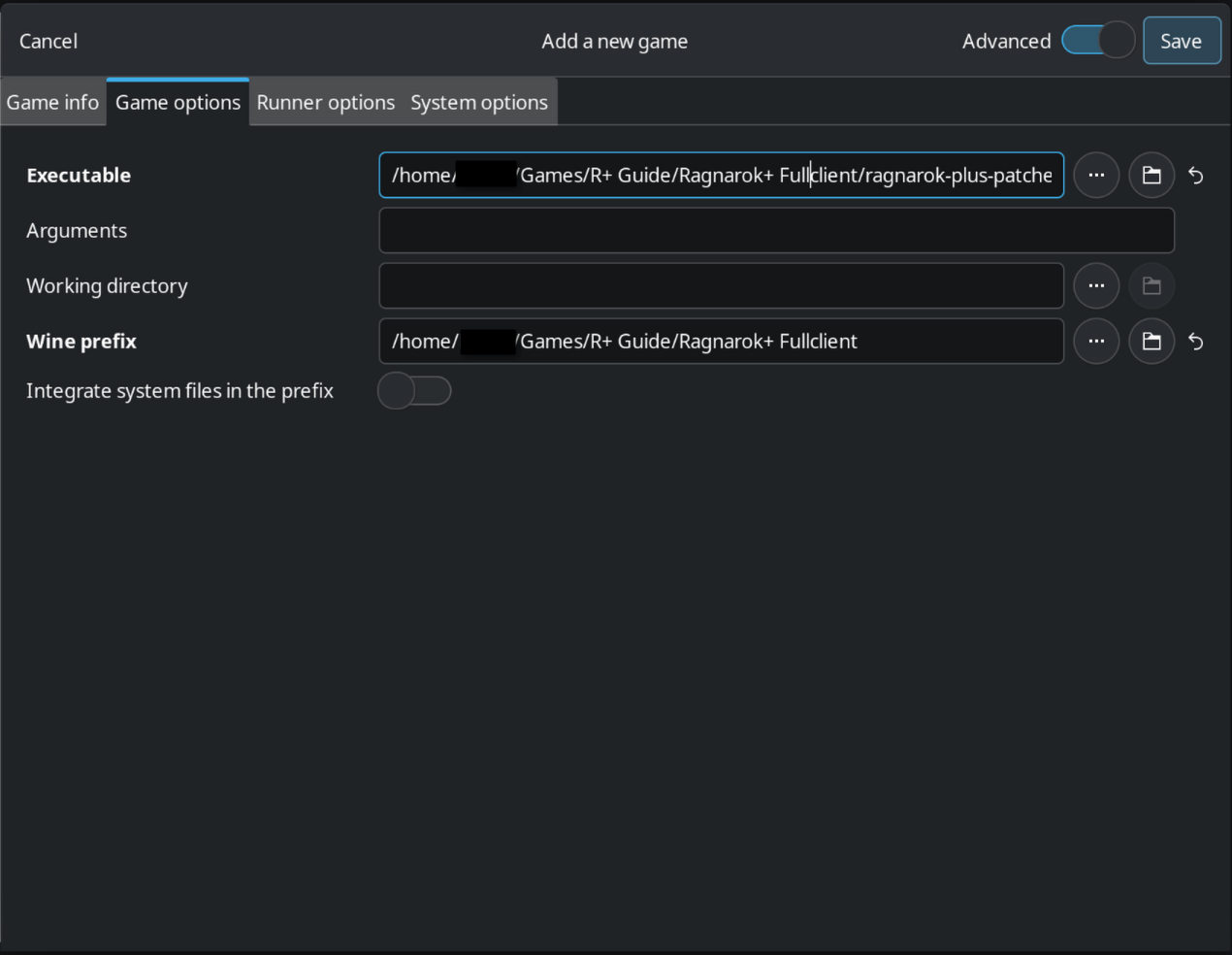
# In the "Game options" tab, point the Executable to ragnarok-plus-patcher.exe located in the folder you extracted Ragnarok+ to earlier. '''<u>Select the Wine Prefix to either be the same folder as your Ragnarok+ directory (if you plan on using only the prefix for Ragnarok+) or to a different directory (if you plan on using the prefix for multiple games.)</u>''' The rest of the fields may be left blank.
# In the "Runner options" field, select the Wine version you wish to use. The following versions have been tested to work with Ragnarok+:
# Save the settings and return to the Launcher Main Menu. '''<u>Ensure that you have the dependencies installed in the Patcher section below before attempting to run the game.</u>'''
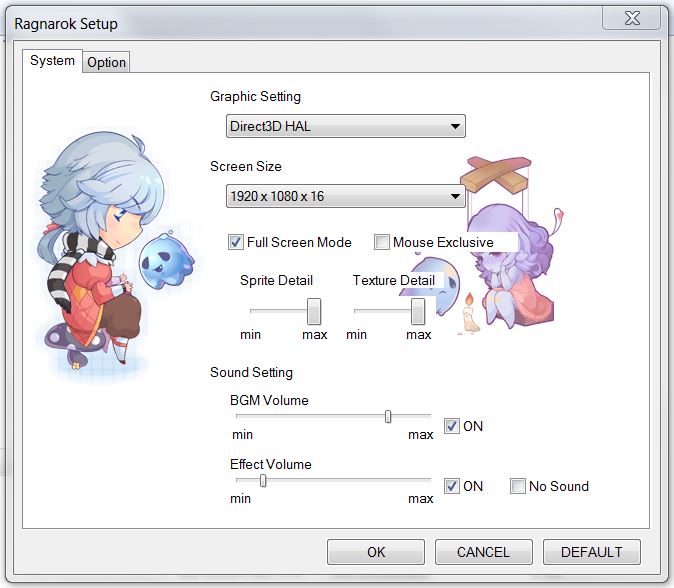
# [[File:Settings.jpg|thumb|Ragnarok Settings]]Click on the game that you named earlier and press Play. This should bring up the Launcher and will begin to patch any missing/changed files. Once that process has finished, click on Play in the R+ Launcher to start the game. The first time you launch the game, you will be first presented with the Ragnarok client settings. As the settings aren't properly translated, refer to the image "Ragnarok Settings" for a translation if needed.
=== Steam ===
=== Steam ===
This is the preferred method for Steam Deck, instructions below are intended for Steam Deck but applicable for general Linux environment as well.
This is the preferred method for Steam Deck, instructions below are intended for Steam Deck but applicable for general Linux environment as well.
Revision as of 23:41, 20 March 2026
To play Ragnarok Plus in Linux environment including through a Steam Deck, there are several options for you.
Generally available in most package managers, otherwise you can go here for to get the latest flatpak or appimage binaries. Once you have that installed, follow steps below:
Download and extract Ragnarok Plus client
Run Heroic Games Launcher > Add Game
Populate the Title, look for an App Image or just use default (shown below), change WinePrefix folder if required. Following Wine/Proton version has been tested:
GE-Proton 9.27
Wine 10.15
Navigate to Ragnarok Plus folder and use Ragnarok+Patcher.exe as the executable then click Finish.
As Ragnarok Plus patcher is missing the 'Setup' option, you may want to repeat steps with the following exception
Reuse the same Wine Prefix folder you configured above (IMPORTANT)
Add Setup.exe instead as the executable
With that all done, you should have 2 different entries - one to launch the patcher and another for the Setup.
Lutris
Lutris Launcher
Another widely popular launcher for Windows games. Feature-rich and a bit of a higher learning curve than Heroic Games Launcher. Also available in most package managers, and as a flatpak. Visit the Lutris download page for more information and instructions about how to download through your preferred distro.
Please ensure you follow the warning about installing the latest version Wine first before attempting to run any Windows games through Lutris.
The steps to installing Ragnarok+ on Lutris are fairly similar to the Heroic Games Launcher above.
After installing Lutris, follow the steps as below:
Game Info
Download Ragnarok+ (requires user to be logged in to view) and extract the .zip file to any directory you wish.
Open Lutris and in the main window click on the "+" button in the top left hand corner. Select "Add locally installed game" when prompted.
In the "Game Info" tab, fill in the Name (you can name it anything you wish,) and select "Wine" as the Runner. The rest of the fields may be left blank or filled in if you so choose.
In the "Game options" tab, point the Executable to ragnarok-plus-patcher.exe located in the folder you extracted Ragnarok+ to earlier. Select the Wine Prefix to either be the same folder as your Ragnarok+ directory (if you plan on using only the prefix for Ragnarok+) or to a different directory (if you plan on using the prefix for multiple games.) The rest of the fields may be left blank.
In the "Runner options" field, select the Wine version you wish to use. The following versions have been tested to work with Ragnarok+:
GE-Proton 9-27
GE-Proton 10-12
Wine 10.15Game Options
Save the settings and return to the Launcher Main Menu. Ensure that you have the dependencies installed in the Patcher section below before attempting to run the game.
Ragnarok SettingsClick on the game that you named earlier and press Play. This should bring up the Launcher and will begin to patch any missing/changed files. Once that process has finished, click on Play in the R+ Launcher to start the game. The first time you launch the game, you will be first presented with the Ragnarok client settings. As the settings aren't properly translated, refer to the image "Ragnarok Settings" for a translation if needed.
Steam
This is the preferred method for Steam Deck, instructions below are intended for Steam Deck but applicable for general Linux environment as well.
Download, extract, and copy Ragnarok Plus client from your PC to Steam Deck OR omit the copy step if you downloaded from Steam Deck directly
Go to Steam Deck desktop mode
Launch Steam > Games > Add a Non-Steam Game to My Library
Browse for the Ragnarok Plus client location, open Ragnarok+Patcher.exe then Add Selected Program
While you are still in desktop mode, modify the properties eg. name and launch options as required
You may need to experiment which Proton version works for you, currently only following version is tested
GE-Proton 9.27
Launch the game and perform the first time setup. If you misconfigured or wish to come back to Setup screen later, you can change the launch executable to Setup.exe temporarily and revert back once is done.
Controller Layout
If you prefer to use a predefined controller layout, rename the game entry to Ragnarok Online, then try out the options available under Community Layouts.
Patcher
In order to ensure the patcher runs, make sure you have the following libraries installed (e.g. through winetricks):